Create BOQs and move clearly between editable drafts and finalized contracts.
What does this page do?
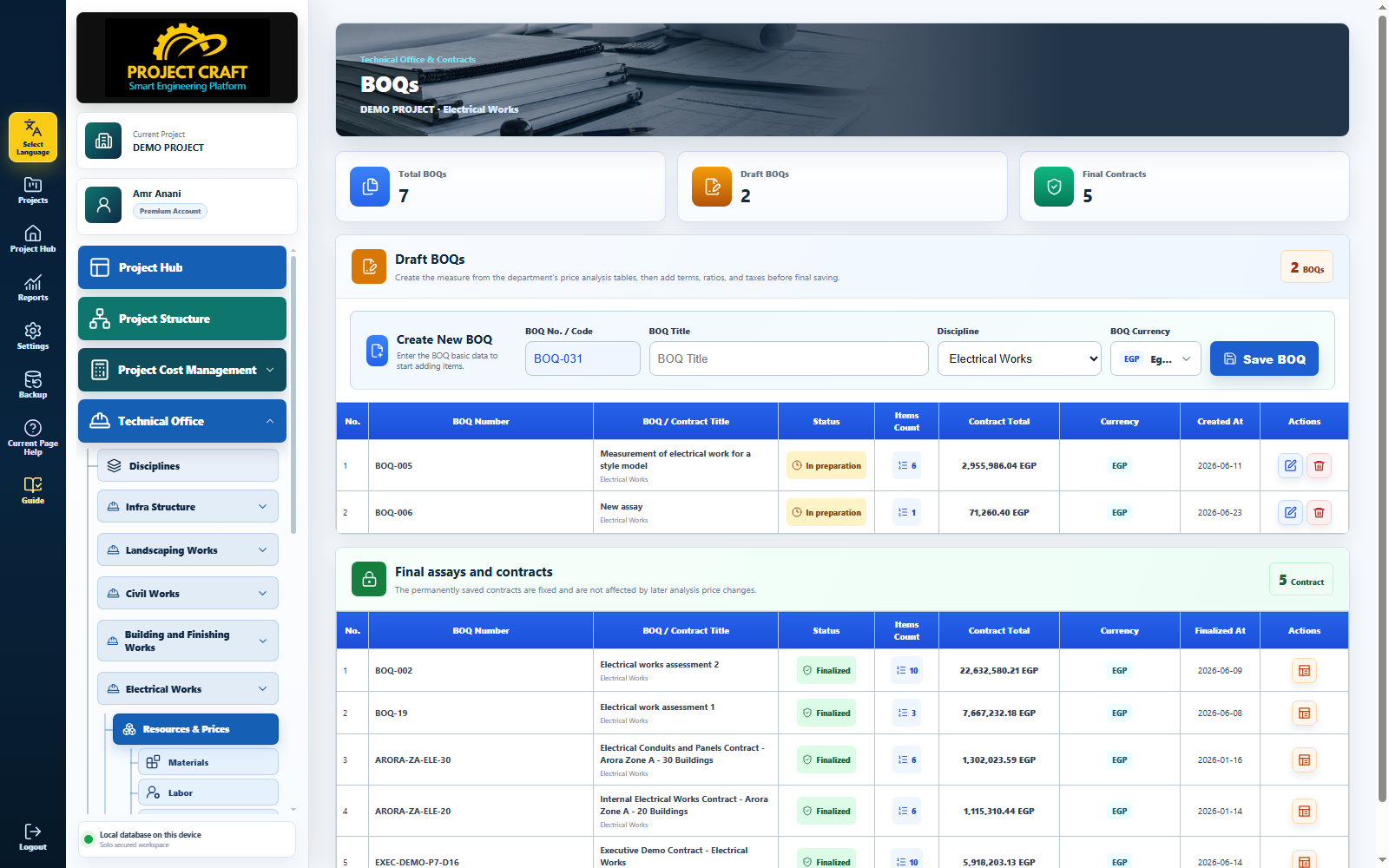
This is the main BOQ register for the current discipline. It combines BOQ counters, the Create New BOQ form, the Draft BOQs table, and the Final BOQs & Contracts table. Start a BOQ here, reopen a draft for setup, or view a locked final contract.
Before You Start
Open the correct project and disciplinePrepare the price analysis tables that will become BOQ itemsChoose the contract currency before data entry
Workflow inside the page
1
Read the BOQ register counters
The summary cards show total BOQs, draft BOQs, and final BOQs. Use them to verify the discipline contract status before creating another record.
Read the BOQ register counters+
2
Create a new BOQ
In the Draft BOQs card, enter the BOQ title, select the discipline and currency, and save. The application generates the BOQ number/code and opens the BOQ Setup page for item entry.
The discipline controls which price analysis tables are available.
The selected currency is used for item values, final calculation, and printing.
Project Structure is linked after finalization, not while creating the draft.
Create a new BOQ+
3
Understand the Draft BOQs table
This table contains editable BOQs. It shows item count, BOQ total, currency, creation date, and status. Use the setup icon to continue editing or the delete icon to remove an unused draft.
Items, quantities, additions, tax, notes, and signatures remain editable.
Item rates built from analyses continue to follow the current draft analysis data.
A draft can be deleted before it is converted to a final contract.
Understand the Draft BOQs table+
4
Understand Final BOQs & Contracts
This table contains finalized BOQs. It shows the base contract value, item count, currency, and finalization date. The view icon opens the locked contract without allowing its original rates or items to be edited.
The final contract is the approved source for schedules, execution, and certificates.
It can be linked to Project Structure, supplied with contract PDFs, and extended through appendices.
A linked appendix no longer appears as a separate main contract.
Understand Final BOQs & Contracts+
5Key Step
Know the difference before finalization
Draft means all calculations are still editable and under review. Final means the items, quantities, rates, and price analysis snapshots are frozen at contract time and will not change when resource prices are updated later.
Complete the full BOQ Setup review before finalization. Do not use finalization as a substitute for review.
Know the difference before finalization+
Core fields and actions
Field or action
Purpose inside the page
Read the BOQ register counters
The summary cards show total BOQs, draft BOQs, and final BOQs. Use them to verify the discipline contract status before creating another record.
Create a new BOQ
In the Draft BOQs card, enter the BOQ title, select the discipline and currency, and save. The application generates the BOQ number/code and opens the BOQ Setup page for item entry.
Understand the Draft BOQs table
This table contains editable BOQs. It shows item count, BOQ total, currency, creation date, and status. Use the setup icon to continue editing or the delete icon to remove an unused draft.
Understand Final BOQs & Contracts
This table contains finalized BOQs. It shows the base contract value, item count, currency, and finalization date. The view icon opens the locked contract without allowing its original rates or items to be edited.
Know the difference before finalization
Draft means all calculations are still editable and under review. Final means the items, quantities, rates, and price analysis snapshots are frozen at contract time and will not change when resource prices are updated later.
Important Notes
Each discipline displays only its own BOQs and analyses.
The main contract and any appendix to be linked must use the same currency.
Continue to BOQ Setup to complete items and the final calculation.