What does this page do?
The final contract page displays the frozen BOQ, final calculation, and item analyses. It also manages contract PDFs, Project Structure, and appendices, then launches schedules and certificates from the main contract.
Manage the locked contract snapshot, contract files, Project Structure link, and variation items.
The final contract page displays the frozen BOQ, final calculation, and item analyses. It also manages contract PDFs, Project Structure, and appendices, then launches schedules and certificates from the main contract.
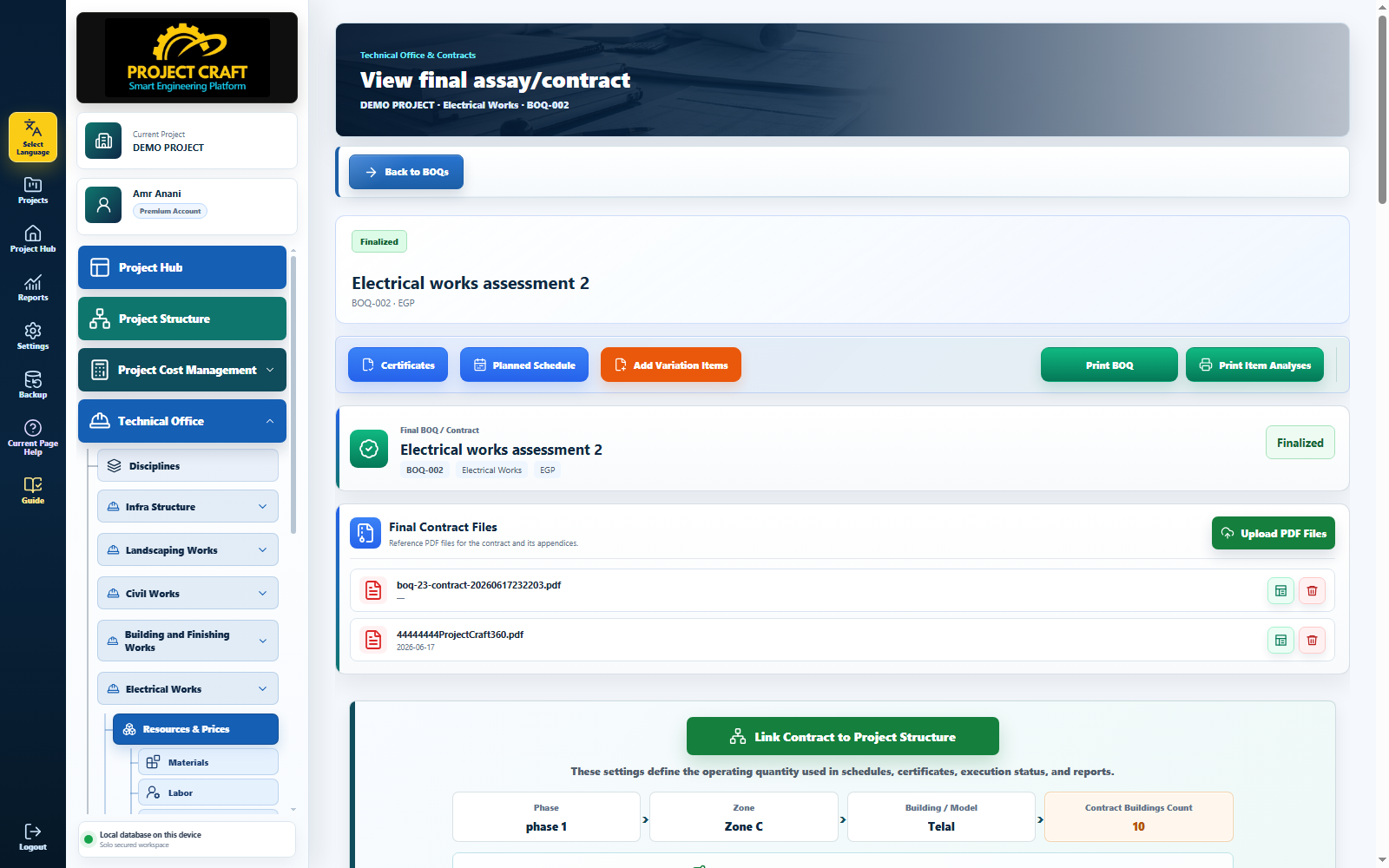
Use the view icon in the Final BOQs table. The identity card shows contract number, title, discipline, currency, and finalization date. Management buttons open Certificates, Planned Schedule, and Add Variation Items; print buttons preview the BOQ and item analyses.
Open the contract and read its identity and actionsOriginal contract items are read-only and the base BOQ value remains separate from appendices. Current resource prices do not recalculate the contract because its commercial data was frozen at finalization.
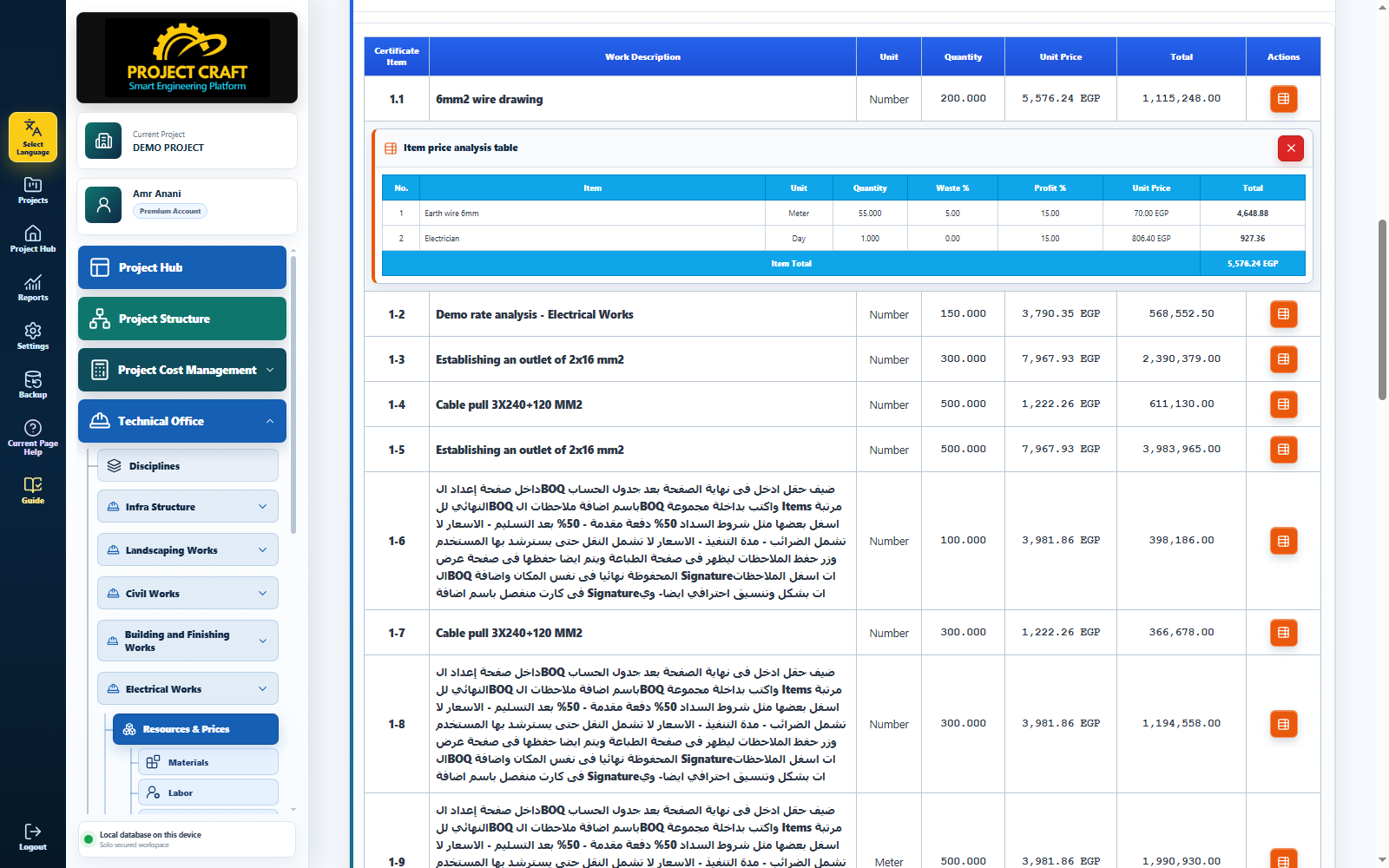 Review frozen items and final calculation
Use the orange icon in the Actions cell to expand the frozen analysis below the item. It shows the components and nested analyses saved at finalization, and its total must equal the final item unit rate.
Open any final item price analysisUse Final Contract Files to upload approved contract PDF documents. Each file can be opened for review or deleted through its dedicated actions without changing BOQ data.
Attach final contract filesSelect Link Contract to Project Structure, choose phase, zone, and building/model, and enter the buildings covered by the contract. The application uses this as the operating quantity for total contract quantities.
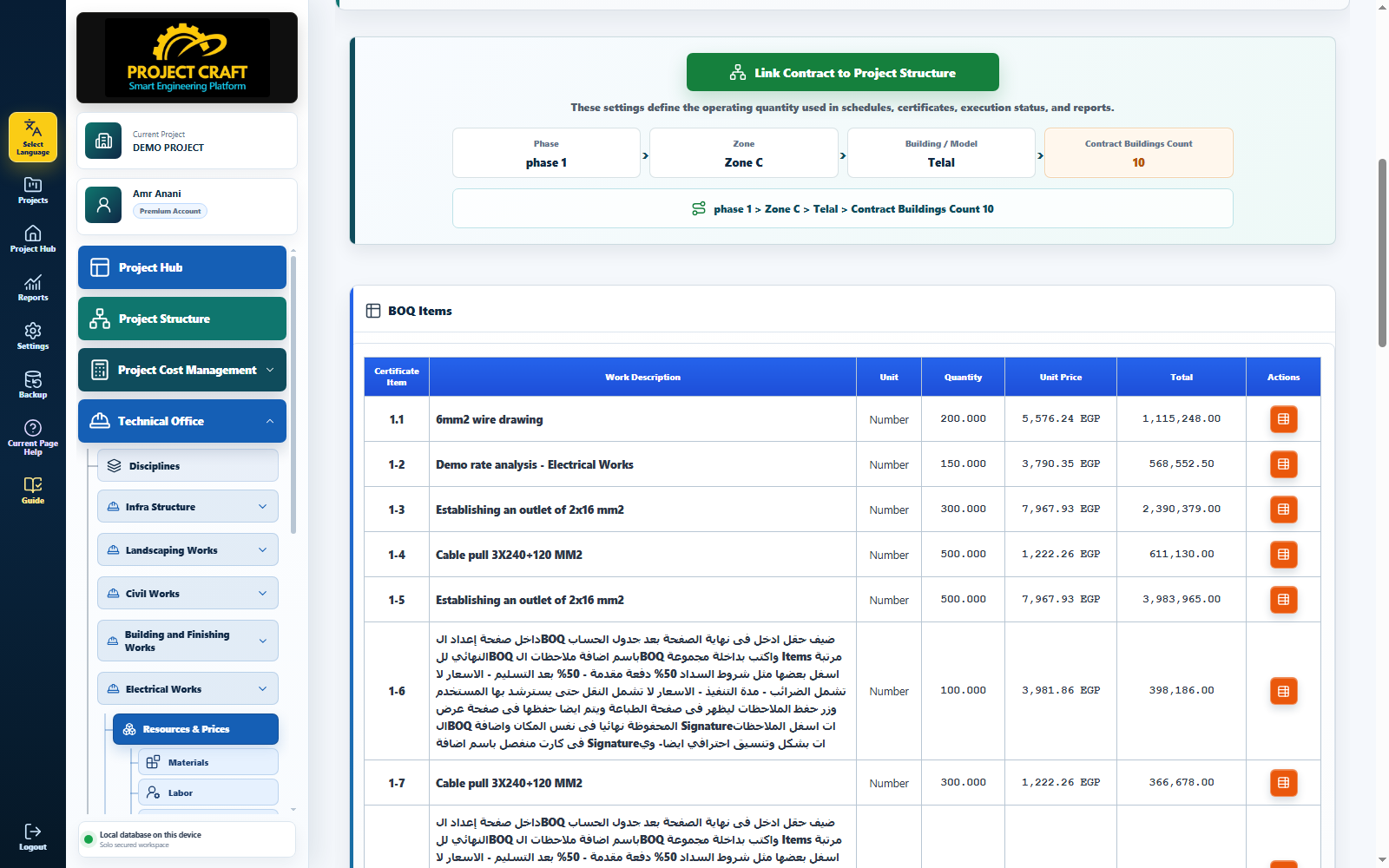 Link the contract to Project Structure
Select the orange Add Variation Items button. A dedicated page opens to attach another final BOQ as an appendix subordinate to the main contract rather than a separate contract.
Open Add Variation ItemsSelect the source final BOQ, then enter appendix number, title, effective date, first available certificate number, and reason/reference. Select Add Variation Items to complete the link.
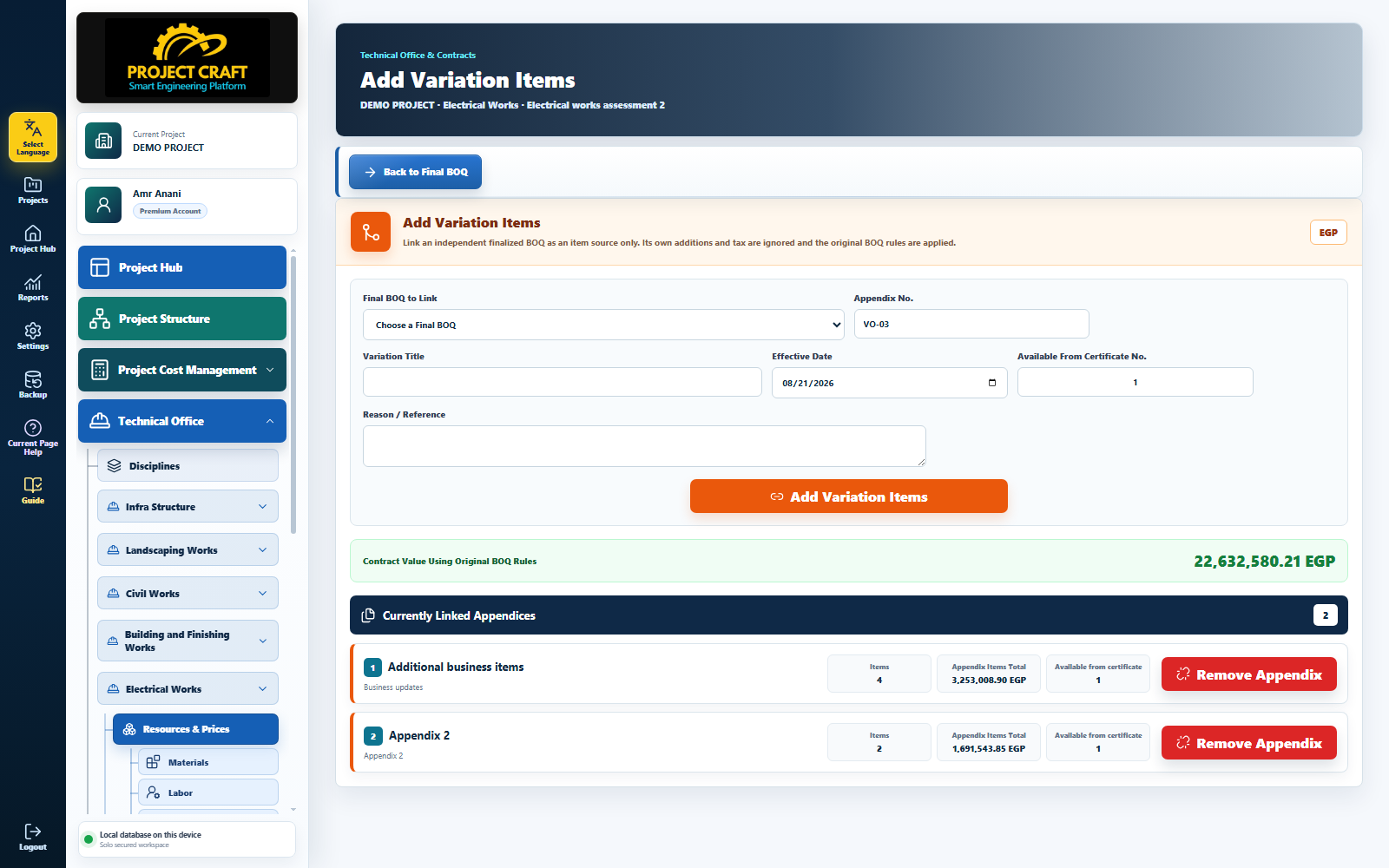 Enter appendix data and link it
The appendix section separates the base BOQ value, each appendix value, and the combined contract total, then displays every appendix item and analysis. An appendix can be unlinked before its items are used in execution; operational use prevents unsafe removal.
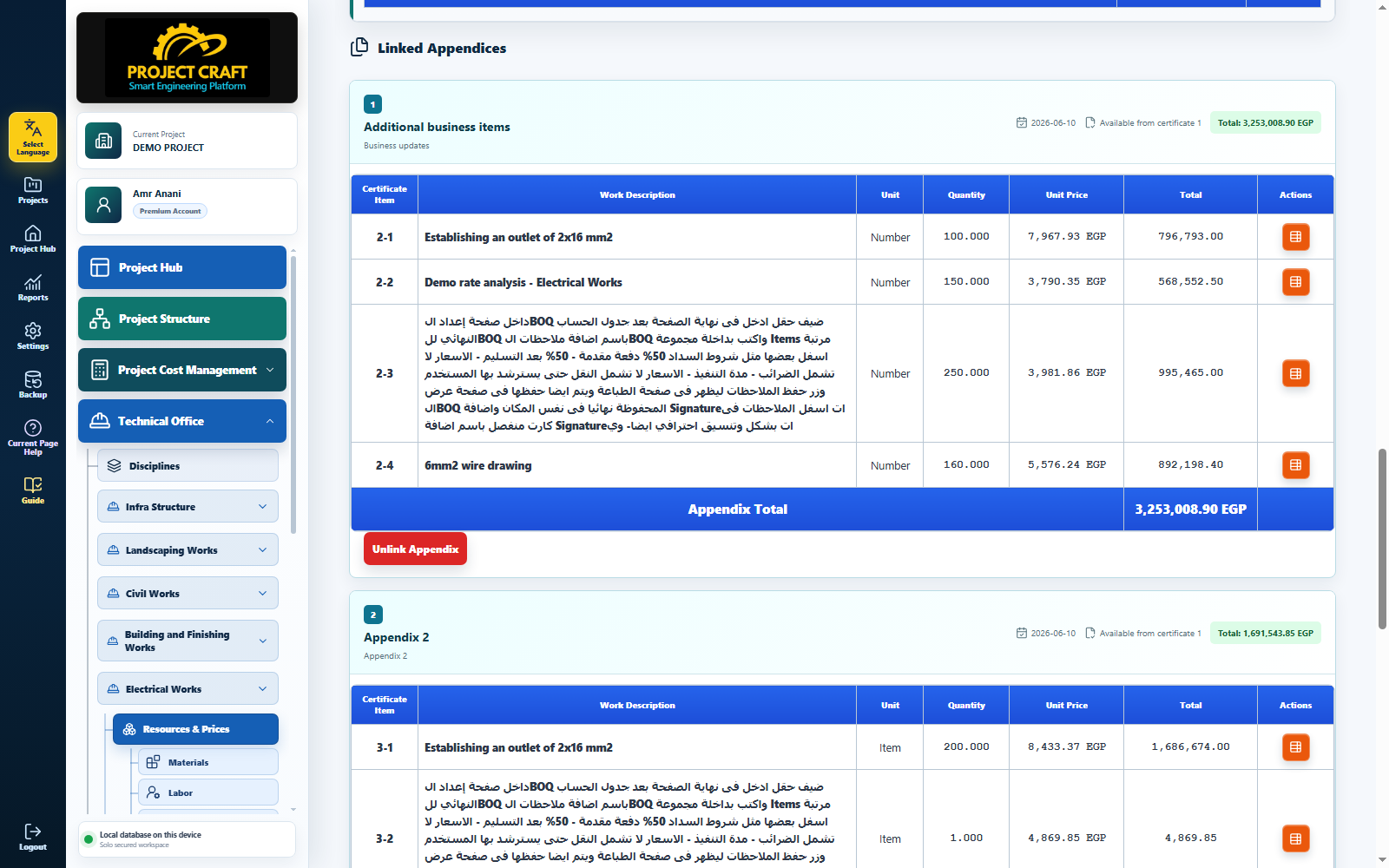 Review appendices and contract values
Create schedules, actual execution, and certificates from the main contract only. Linked appendices enter the contract flow according to their effective certificate/date and are consolidated in reports without duplicating a separate contract.
Run operations from the main contract| Field or action | Purpose inside the page |
|---|---|
| Open the contract and read its identity and actions | Use the view icon in the Final BOQs table. The identity card shows contract number, title, discipline, currency, and finalization date. Management buttons open Certificates, Planned Schedule, and Add Variation Items; print buttons preview the BOQ and item analyses. |
| Review frozen items and final calculation | Original contract items are read-only and the base BOQ value remains separate from appendices. Current resource prices do not recalculate the contract because its commercial data was frozen at finalization. |
| Open any final item price analysis | Use the orange icon in the Actions cell to expand the frozen analysis below the item. It shows the components and nested analyses saved at finalization, and its total must equal the final item unit rate. |
| Attach final contract files | Use Final Contract Files to upload approved contract PDF documents. Each file can be opened for review or deleted through its dedicated actions without changing BOQ data. |
| Link the contract to Project Structure | Select Link Contract to Project Structure, choose phase, zone, and building/model, and enter the buildings covered by the contract. The application uses this as the operating quantity for total contract quantities. |
| Open Add Variation Items | Select the orange Add Variation Items button. A dedicated page opens to attach another final BOQ as an appendix subordinate to the main contract rather than a separate contract. |
| Enter appendix data and link it | Select the source final BOQ, then enter appendix number, title, effective date, first available certificate number, and reason/reference. Select Add Variation Items to complete the link. |
| Review appendices and contract values | The appendix section separates the base BOQ value, each appendix value, and the combined contract total, then displays every appendix item and analysis. An appendix can be unlinked before its items are used in execution; operational use prevents unsafe removal. |
| Run operations from the main contract | Create schedules, actual execution, and certificates from the main contract only. Linked appendices enter the contract flow according to their effective certificate/date and are consolidated in reports without duplicating a separate contract. |