What does this page do?
This page builds an accurate unit price from real components: materials, labor, equipment, or a nested analysis table. The resulting price is later used when an item is added to a draft BOQ.
A practical guide built from the real application page with accurately marked controls.
This page builds an accurate unit price from real components: materials, labor, equipment, or a nested analysis table. The resulting price is later used when an item is added to a draft BOQ.
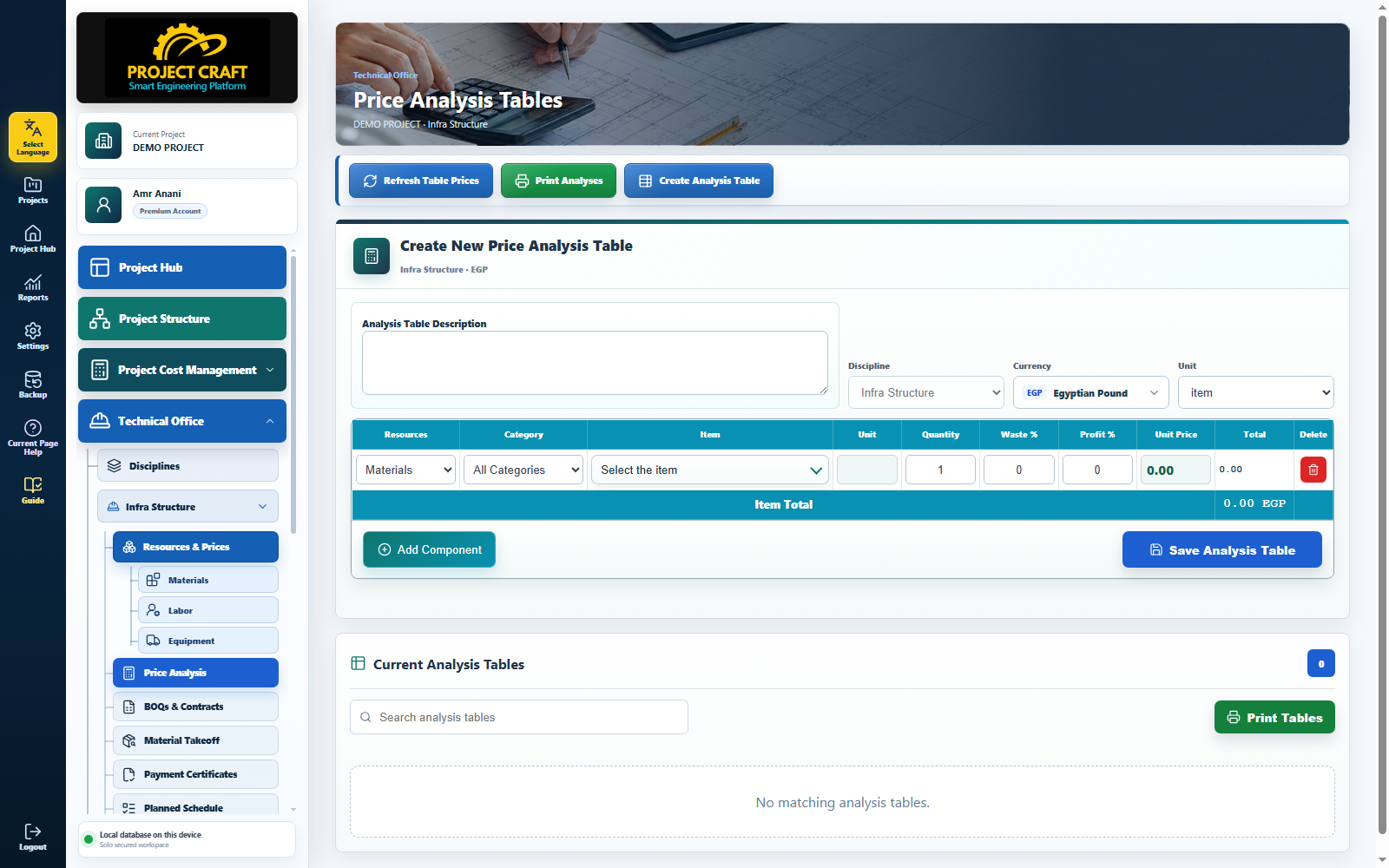
Confirm that the required discipline is open in the side navigation because the analysis will be available only to BOQs in that discipline.
Create Analysis Table buttonThe description is the item name you will search for later in BOQ setup. Use a direct and meaningful work description.
Analysis table descriptionThe discipline controls scope, the currency controls price display, and the unit becomes the final BOQ item unit.
Discipline, currency, and unitSelect whether the component is material, labor, equipment, or a nested analysis, then choose its category and item.
Resource type, category, and itemEnter the component quantity needed for one unit of work, then waste and profit percentages. The row total is calculated automatically.
Calculation inputs and row totalThe Item Total row combines all components. Add another component whenever material, labor, equipment, or a nested analysis is still missing.
Components, item total, and Add ComponentAfter reviewing the description, components, and total, save the table so it becomes available in BOQ setup.
Save Analysis Table button| Field or action | Purpose inside the page |
|---|---|
| Analysis Table Description | The priced item or work name shown later in the BOQ item picker. |
| Discipline | Links the analysis to the current discipline and prevents unrelated use. |
| Resource / Category / Item | Defines the component cost source: material, labor, equipment, or nested analysis. |
| Quantity | Component quantity required to execute one final item unit. |
| Waste % | Expected increase caused by loss or operational waste. |
| Profit % | Markup added to the component cost. |
| Item Total | Sum of all component totals and the BOQ unit price. |