What does this page do?
The schedule splits final contract items into planned periods, sets each period percentage, links required materials, and displays the timeline.
Create planned periods and connect them to materials and execution.
The schedule splits final contract items into planned periods, sets each period percentage, links required materials, and displays the timeline.
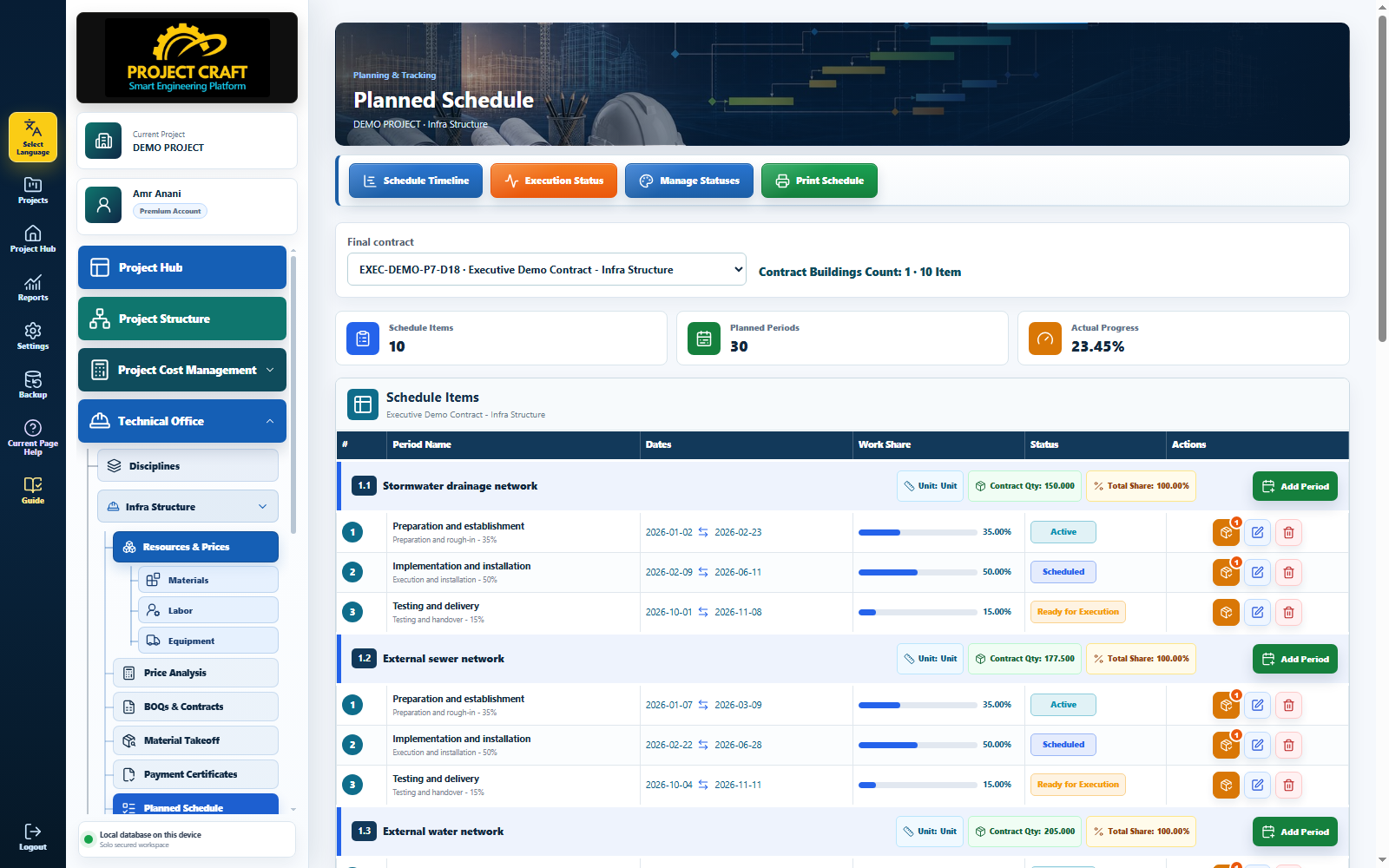
Choose the final contract from the list.
Select contractEnter period name, dates, and work percentage from the item.
Add planned periodAssign each material requirement percentage to the planned period. This link lets ProjectCraft aggregate time-based material demand and generate an accurate monthly procurement plan instead of showing contract totals only.
Link period materialsReview periods, colors, status, and print layout.
Open timeline| Field or action | Purpose inside the page |
|---|---|
| Select contract | Choose the final contract from the list. |
| Add planned period | Enter period name, dates, and work percentage from the item. |
| Link period materials | Assign each material requirement percentage to the planned period. This link lets ProjectCraft aggregate time-based material demand and generate an accurate monthly procurement plan instead of showing contract totals only. |
| Open timeline | Review periods, colors, status, and print layout. |